
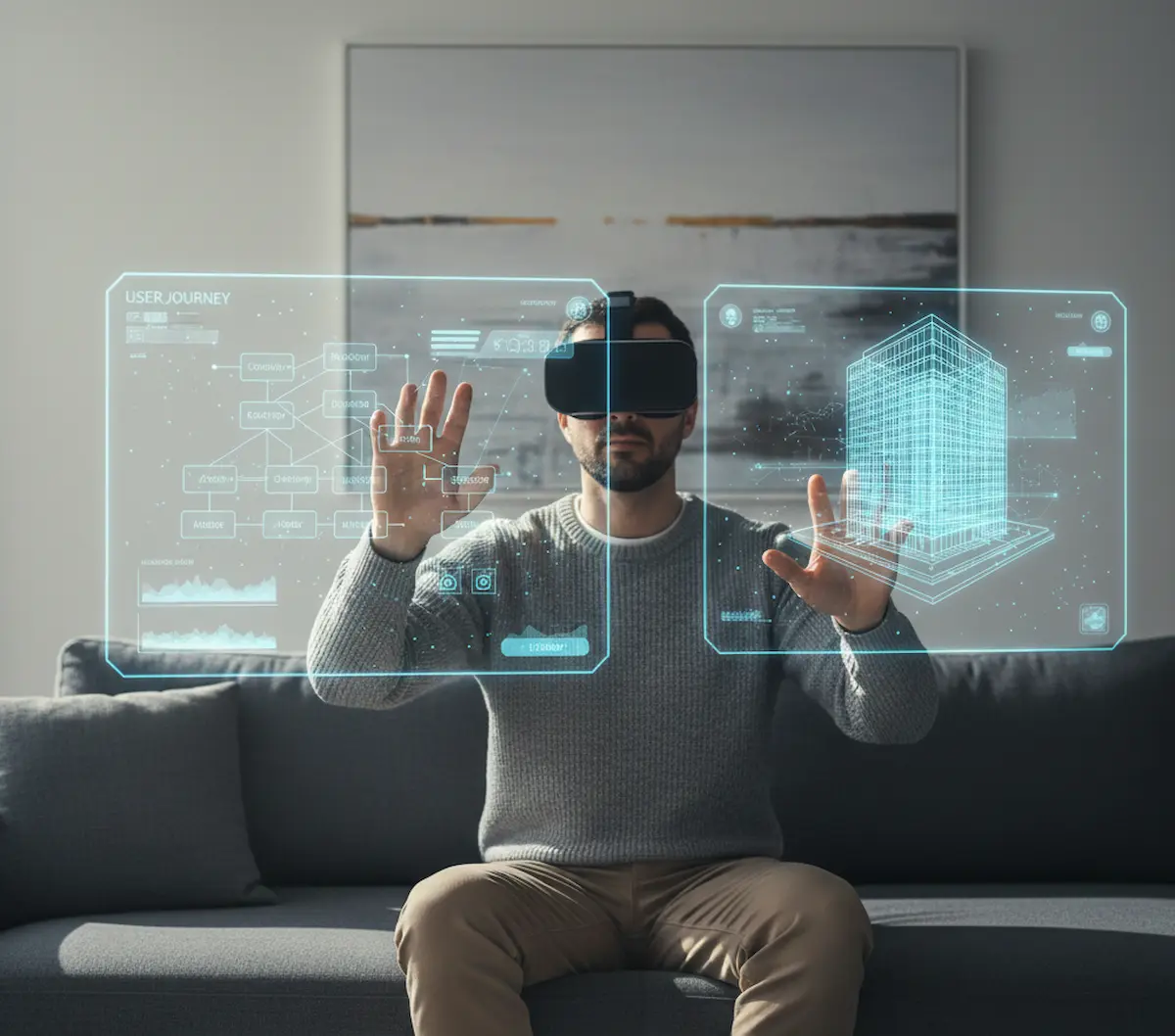
The digital world is no longer confined to flat screens. With the advent of devices like Apple Vision Pro and advanced AR/VR headsets, we are stepping into an era of Spatial UI. This is where our digital experiences break free from 2D pixels and inhabit the three-dimensional world around us. For designers, this shift is monumental, demanding a complete re-evaluation of how we conceive, craft, and test user interfaces. This guide will walk you through the essentials of designing for this exciting new frontier.
What is Spatial UI? Beyond the Flat Screen
Spatial UI (User Interface) refers to interfaces designed to exist and interact within a 3D physical or virtual space. Unlike traditional UI, which is bound by the edges of a screen, Spatial UI elements can have depth, volume, and position relative to the user and their environment.
Imagine an app not as a window on your phone, but as a hologram floating in your living room, or information projected directly onto real-world objects. This is the promise of Spatial UI.
Why the Shift to Spatial UI Now?
The push towards Spatial UI is driven by several key factors:
- Immersive Experiences: AR/VR devices offer unparalleled immersion, making digital content feel more tangible and real.
- Natural Interaction: Interacting with digital objects in 3D space often feels more intuitive, mimicking real-world behaviors.
- Enhanced Productivity: Spatial computing allows users to arrange multiple interfaces and tools around them, creating a more expansive and efficient workspace.
Core Principles of Spatial UI Design
Designing in 3D is fundamentally different from 2D. Here are the principles that will guide your work:
1. Real-World Analogs (Skeuomorphism 2.0)
While traditional skeuomorphism was often criticized, in spatial UI, using real-world metaphors (like virtual buttons that behave like physical ones) greatly aids understanding. This helps users quickly grasp how to interact with new interfaces.
2. Depth and Layering (Z-Axis Power)
The Z-axis (depth) is your new best friend. Use it to establish hierarchy, separate information, and create a sense of presence. Elements closer to the user feel more immediate and interactive.
3. Spatial Awareness and Environment Integration
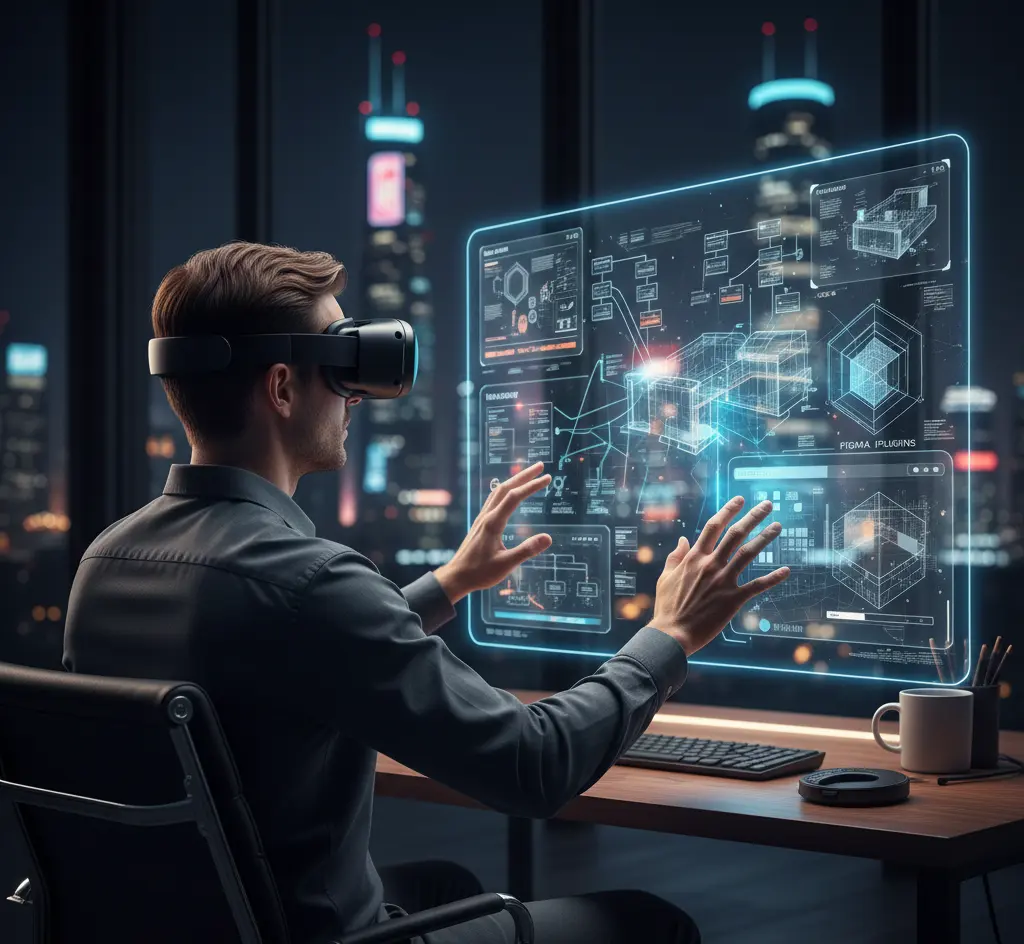
Your UI isn’t just floating in space; it interacts with the user’s surroundings. Consider how lighting, real-world objects, and user movement impact the perception and usability of your interface.
4. Intuitiveness Through Natural Interaction
Gestures, gaze tracking, and voice commands are often more natural than traditional mouse and keyboard inputs in spatial environments. Design interactions that feel intuitive and require minimal cognitive effort.
Designing the User Journey in 3D Space
The User Journey in Spatial UI is fundamentally different. It’s less about screen-to-screen transitions and more about navigating a continuous environment.
- Entry Points: How does a user “enter” your spatial experience? Is it through an app icon, a voice command, or by physically walking into a defined area?
- Navigation: Instead of scrolling, users might move their heads, physically walk, or use hand gestures to navigate through content.
- Task Flow: Design tasks to feel like a natural progression through space, rather than a series of clicks. A project management app, for example, might allow users to “pin” different tasks walls around their virtual workspace.
The Evolution of Workflow: Figma Plugins and 3D Prototyping
To build a seamless User Journey in a 3D space, your traditional 2D workflow needs an upgrade. You aren’t just designing screens anymore; you are designing “volumes.”
Leveraging Figma Plugins for Spatial Design
Even though Figma is a 2D tool, the community has developed powerful Figma Plugins to help bridge the gap. Plugins like Equity or Ghost allow you to apply perspective transforms and glassmorphism effects that mimic the Apple Vision Pro “glass” material.
- Tip: Use plugins that allow you to export layers into 3D environments like Spline or Bezi to see how your buttons look from different angles.
The Role of Rapid Prototyping
In Spatial UI, Prototyping is where you find the “magic” or the “mess.” You cannot truly understand if a floating menu is comfortable until you see it in 3D.
- Z-Index Testing: Use prototyping tools like Reality Composer or Unity to test the distance between the user and the UI. If a menu is too close, it causes eye strain; if it’s too far, it feels disconnected.
- Gaze & Pinch: Prototype the “hover” state for your eyes. In Vision Pro, an element should subtly glow or expand when a user looks at it, providing immediate feedback before they even “click” with a pinch gesture.
Designing for Human Constraints: Ergononmics & Comfort
Unlike a phone, where the only constraint is your thumb’s reach, Spatial UI involves the whole body.
- The “Safe Zone”: Most interactive elements should live within a 60-degree field of vision. Anything outside this requires the user to turn their neck, which leads to “Gorilla Arm” or neck fatigue over time.
- Adaptive Lighting: Your UI must be “smart.” If a user walks from a dark room into a bright one, the virtual glass should adjust its tint and shadow intensity to remain legible. This is known as Environment Integration.
- Haptic Audio: Since there is no physical screen to touch, sound becomes your haptic feedback. A soft “pop” sound when a user pinches a virtual button replaces the tactile click of a mouse.
The Technical Challenge: Text Legibility and Scale
In a 3D space, text doesn’t stay at a fixed resolution.
- Dynamic Scaling: As a user walks toward a floating window, the text shouldn’t just get bigger; it should sharpen.
- Billboarding: This is a technique where UI elements always rotate to face the user, no matter where they move. It ensures that the User Journey isn’t interrupted by unreadable, skewed text.
Conclusion: Stepping Into the Future
Implementing Spatial UI is about moving from “Designers of Screens” to “Designers of Environments.” By mastering Prototyping in a 3D context, using specialized Figma Plugins, and mapping out a non-linear User Journey, you are preparing yourself for the next decade of digital interaction.
The transition from static pixels to adaptive, spatial holograms is a journey of trial and error. But for those who master the Z-axis today, the possibilities of tomorrow are limitless.
Leave a Reply